How the test was set up
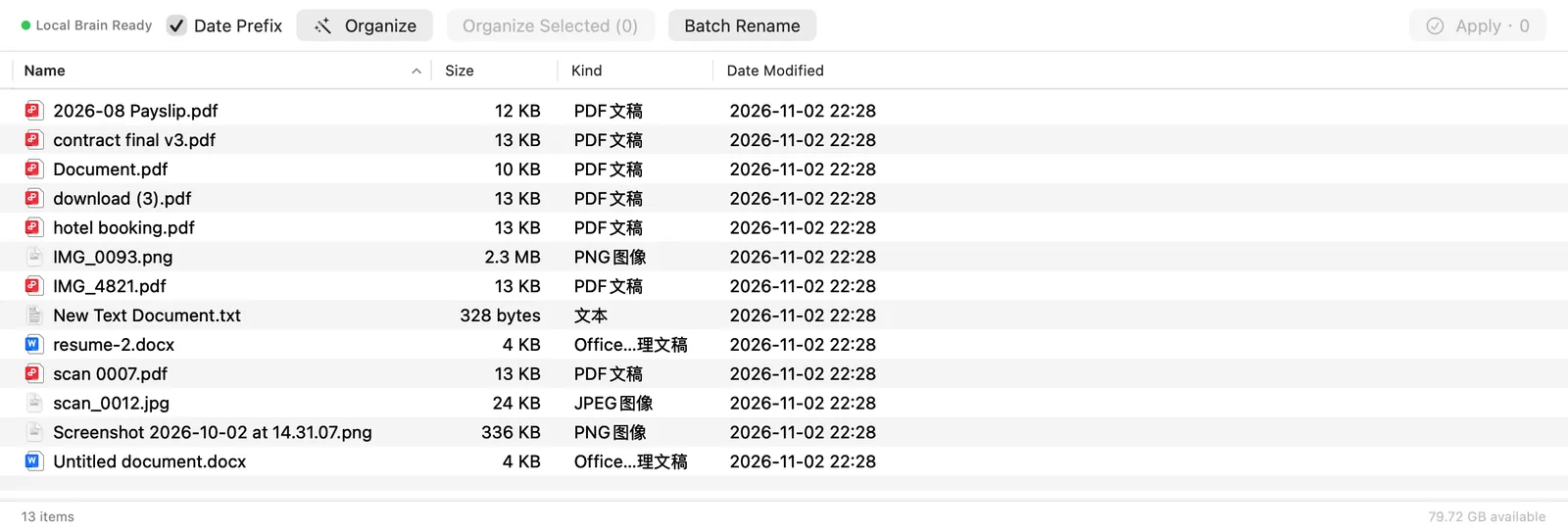
I prepared a demo folder of 13 files: 7 PDFs (an invoice, a lease, a services contract, a paper abstract, lecture slides, a hotel booking and a payslip), 2 Word documents, 2 images, a deliberately blurred receipt photo and a recipe text file. Every name is the kind that says nothing, such as IMG_4821 or download (3). The contents, people and companies are made up, and the folder is about 2.6 MB in total.
The Mac has an M3 chip, 16 GB of memory and macOS 27.2. It ran the code of Filewise 0.8.1 as it was in development (build 35) with the local Qwen2.5-3B model, and the organizing ran on the Mac itself. Compared with the 0.8.0 that was public at the time, that build only adds the Full Disk Access guide window; the organize step is unchanged.
Note: I had a program call the same code that the Organize, Apply and Undo buttons call, rather than clicking each button by hand. The screenshots are Filewise's own interface rendered with this run's real results, not a screen capture of my own folders. The demo files were generated with a tool and are cleaner than everyday scans, so expect lower accuracy on real files.
Step 1: open the folder, where no name tells you anything
Step 2: click Organize and wait for it to read
The first run over 13 files took 19.7 seconds, which includes loading the local model into memory. I cleared the suggestions and ran it again, and it took 0.4 seconds. A first-time install also downloads about 2 GB of model; I did not time that step, and it depends on your connection.
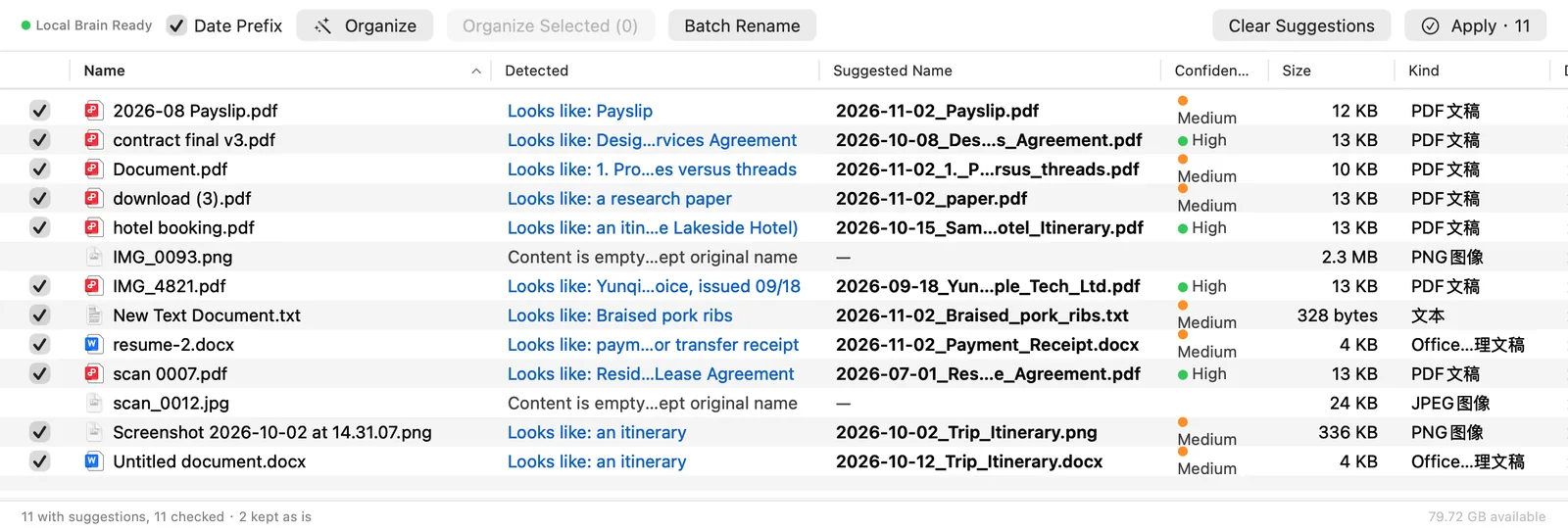
When it finished, the list had three new columns (Read, Suggested name, Confidence), and the status bar said "11 with suggestions, 11 checked · 2 kept as is". Not a single file had been touched yet.
How many it got right
I went through every row. Here are all 13, including the wrong ones.
| Original name | Suggested name | Confidence | My verdict |
|---|---|---|---|
| 2026-08 Payslip.pdf | 2026-11-02_Payslip.pdf | Medium | Right |
| Document.pdf | 2026-11-02_1._Processes_versus_threads.pdf | Medium | Rough: took a line from the page, not the title |
| IMG_0093.png | — | — | Kept (no text in the picture) |
| IMG_4821.pdf | 2026-09-18_Yunqi_Office_Supplies_Co_Invoice_Sample_Tech_Ltd.pdf | High | Right |
| New Text Document.txt | 2026-11-02_Braised_pork_ribs.txt | Medium | Right |
| Screenshot 2026-10-02 at 14.31.07.png | 2026-10-02_Trip_Itinerary.png | Medium | Rough: it is a train ticket |
| Untitled document.docx | 2026-10-12_Trip_Itinerary.docx | Medium | Wrong: these are meeting notes |
| contract final v3.pdf | 2026-10-08_Design_Services_Agreement.pdf | High | Right |
| download (3).pdf | 2026-11-02_paper.pdf | Medium | Rough: the paper title was lost |
| hotel booking.pdf | 2026-10-15_Sample_Lakeside_Hotel_Itinerary.pdf | High | Rough: a hotel booking, not quite an itinerary |
| resume-2.docx | 2026-11-02_Payment_Receipt.docx | Medium | Wrong: this is a resume |
| scan 0007.pdf | 2026-07-01_Residential_Lease_Agreement.pdf | High | Right |
| scan_0012.jpg | — | — | Kept (a deliberately blurred receipt) |
Of the 11 suggestions, 5 were right, 4 were rough, and 2 were wrong: the meeting notes were named as a trip itinerary and the resume as a payment receipt. The 2 files kept as they were are the picture with no text and the blurred receipt, which could not be read.
All 4 suggestions marked High confidence were right, and every wrong one was marked Medium. This is one run over 13 files, so it only suggests that Medium rows deserve a second look; it is not an accuracy rate. I also ran the same kind of files with Chinese names and contents, which came out somewhat better (9 suggestions, 6 right); that run is on the Chinese page.
The date at the start comes from the file's content when the content has one (the invoice 2026-09-18, the lease 2026-07-01, the contract 2026-10-08). Otherwise it is the file's own date, which is 2026-11-02 here because the demo files were created that day.
Step 3: check, then click Apply
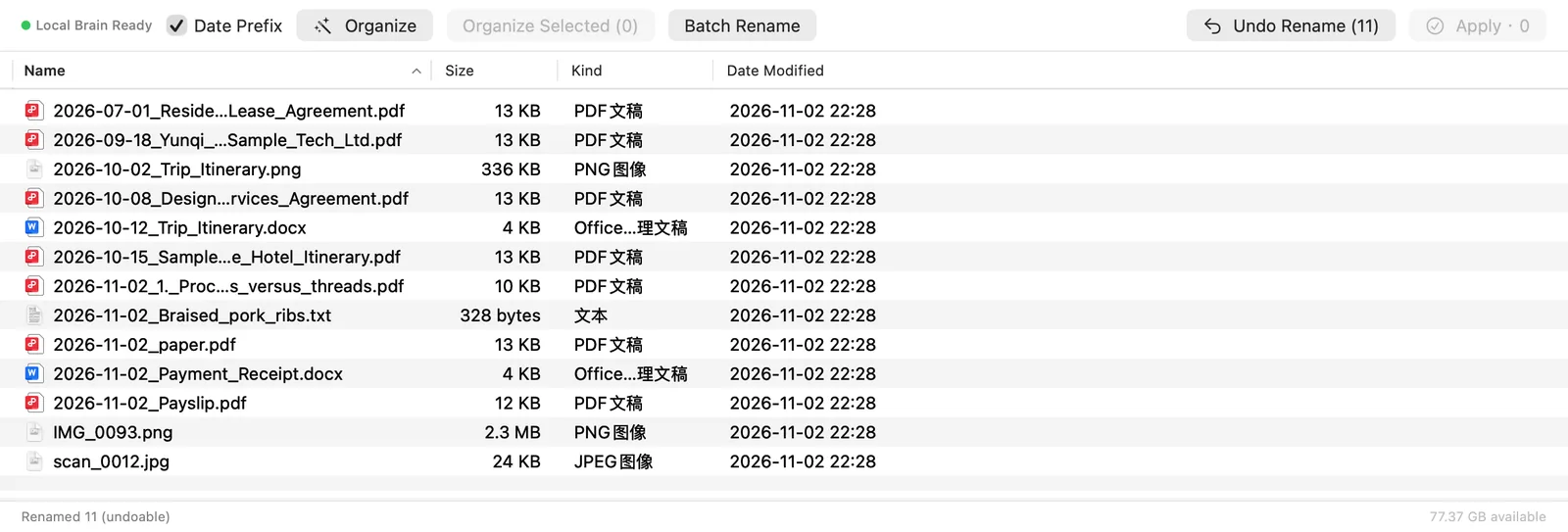
I applied without editing any row. Renaming 11 files took 0.1 seconds, the status bar changed to "Renamed 11 (undoable)", and an "Undo Rename (11)" button appeared at the top right. In real use, look through the Medium rows first, untick or edit the wrong ones, and apply after that.
Can it be undone
After clicking Undo Rename, all 13 files were back under their original names. I also compared the contents of every file before and after: not one byte changed and no file went missing.
What this test covered and what it did not
- Covered: how long 13 files took, which were changed and which were not, whether the names were right, how long applying took, whether undo restored the names, whether contents changed.
- Not covered: real scans and handwriting, folders with thousands of files, the time of the first model download, and speed on an older Mac.
To check it yourself, try a folder of unimportant files first and decide on Apply after reading the plan. For the ways to rename PDFs by content see Rename PDF files by content on Mac; for invoices and contracts see invoices and receipts and contracts and scans.
FAQ
How long does Filewise take to organize 13 files?
In this test the first run took 19.7 seconds, including loading the local model, and a second run with the model already in memory took 0.4 seconds. The Mac has an M3 chip and 16 GB of memory.
How accurate are the suggested names?
Of 13 files, 11 got a suggestion: 5 were right, 4 were rough and 2 were wrong, and 2 kept their original name. All 4 High confidence suggestions were right and the wrong ones were Medium, so read the plan before you apply.
Can I get the original names back?
Yes. After clicking Undo, all 13 files were back under their original names, and a comparison of every file showed the contents were unchanged.
